

Payment methods and payment method sets
From the Staff site, go to Settings > Finance > Pay Central > Payment method sets to define collections of allowable payment methods for a particular commerce transaction process. It is advised to present only a few choices of payment methods to online users, but allow the full array of options for a staff user. For example, it is recommended to only use the Cash and Check payment methods in the Staff payment method set.
NoteYou can add the Cash and Check payment methods to the Public payment method set, but the recommended approach is to only use the Cash and Check payment methods in the Staff payment method set.
Creating or editing payment methods
Specify the allowable payment methods customers can use (Public payment method set) and the bank account into which the payment should be deposited.
Payment methods such as VISA or MasterCard are specific for payment types, for example, credit card or debit card. At least one payment method must be created for each separate bank account into which payments can be deposited or from which payments can be paid.
📘 Note
You must create a payment method that is tied to a gateway account before adding the payment method to the payment method set.
After you create your payment methods, you can group them into payment method sets.
Do the following to create your payment methods:
📘 Note
CSC and postal code are required for public users and optional for staff users. Currently, there is no setting in iMIS to amend this.
- Go to Settings > Finance > Pay Central, and select the Payment methods tab.
- (Payment methods tab) Select the payment method to edit, or click Add new item to add a new payment method. Enter the following information for the payment method:
- Enter a Name for the payment method.
- Enter a Display Name for the payment method. This will be used as the Visible Name of your payment method when you add it to a payment method set.
- Select the payment Type from the drop-down.
- (optional) Select the Gateway Account from the drop-down, if applicable.
- Select the Financial Entity to associate with this payment method.
- Browse to select the Cash Account associated with this payment method.
- Select the default Currency Code from the drop-down.
- (credit card or direct debit only) Enable the Display payment authorization checkbox to display an authorization checkbox in the cart for this payment method. When this setting is enabled for the payment method, the user must enable the authorization checkbox in their cart before they can submit the payment. The provided HTML text box must have the authorization details that the customer is agreeing to, such as:
📘 Note
The Cash Account search and verification only work if there is a Financial Entity populated for the payment method.I authorize {Organization name} to charge my {credit/debit} card for agreed upon purchases. I understand that my information will be saved to file for future transactions on my account
📘 Note
This setting is required for Australian and New Zealand users. - Save your changes.
Adding payment methods to a payment method set
After you define all payment methods, you can add them into a payment method set.
📘 Note
You must create a payment method that is tied to a gateway account before you can add the payment method to a payment method set.
📘 Note
The out-of-the-box BillMe payment method (Pay Later) allows staff to submit a transaction without immediate payment. Once you have selected the option to Pay Later in the cart, the option will not appear for that particular invoice again. BillMe can be included in a payment method set by adding the BillMe payment method.
Do the following to add or edit a payment method in a payment method set:
- From the Staff site, go to Settings > Finance > Payment Central, and click the Payment method sets tab.
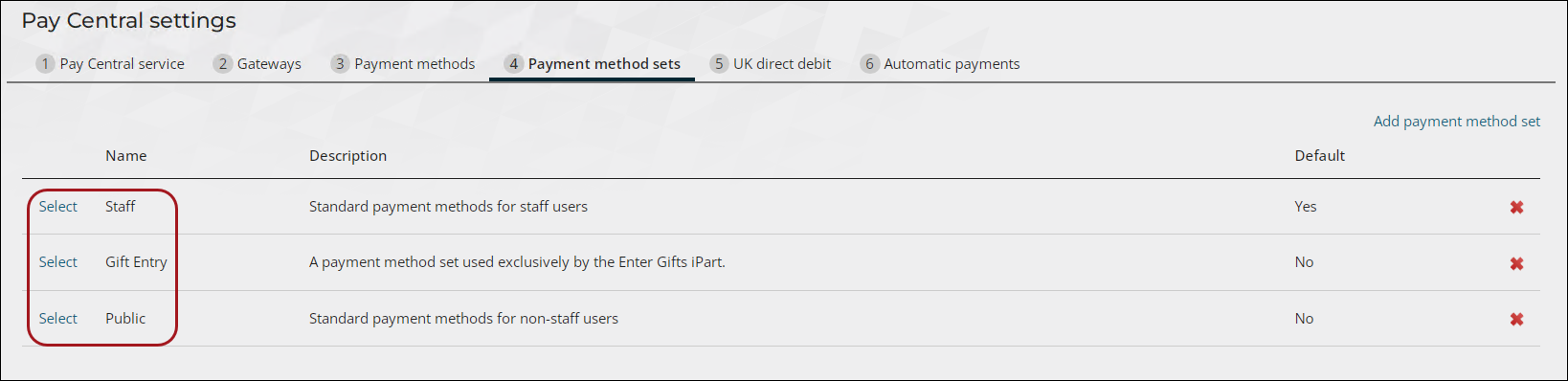
- (Payment method sets tab) Select the payment method set to which you want to add a new payment method or for which you want to edit a payment method.
-
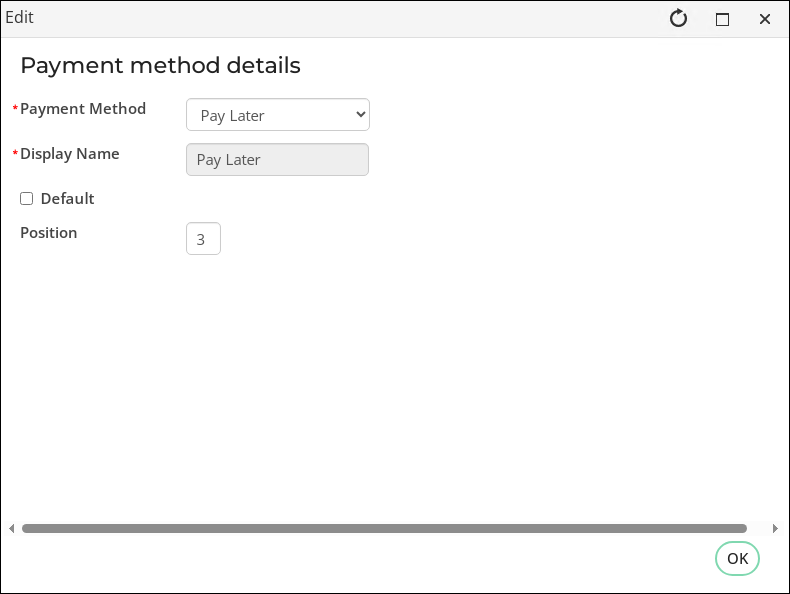
Select the payment method to edit, or click Add to add a new payment method:
- Select a Payment Method from the drop-down. The Display Name was defined when you created the payment method.
- (optional) You can specify the payment method as Default. If you specify a payment method as Default, then any existing payment method previously marked as Default is demoted.
- You can specify the Position of a payment method in the payment method set. This will dictate the order in which the applicable payment methods will be displayed in a payment method drop-down, for example, in the shopping cart.
- Click OK.
- Save the changes to the payment method set.
📘 Note
You can add the Cash and Check payment methods to the Public payment method set, but the recommended approach is to only use the Cash and Check payment methods in the Staff payment method set.
Creating or editing a payment method set
📘 Note
The Gift Entry payment method set is designed to be used specifically with the Enter gifts window. For more information, refer to Entering gifts.
Do the following to add a new payment method set, or edit an existing payment method set:
- From the Staff site, go to Settings > Finance > Pay Central, and select the Payment method sets tab.
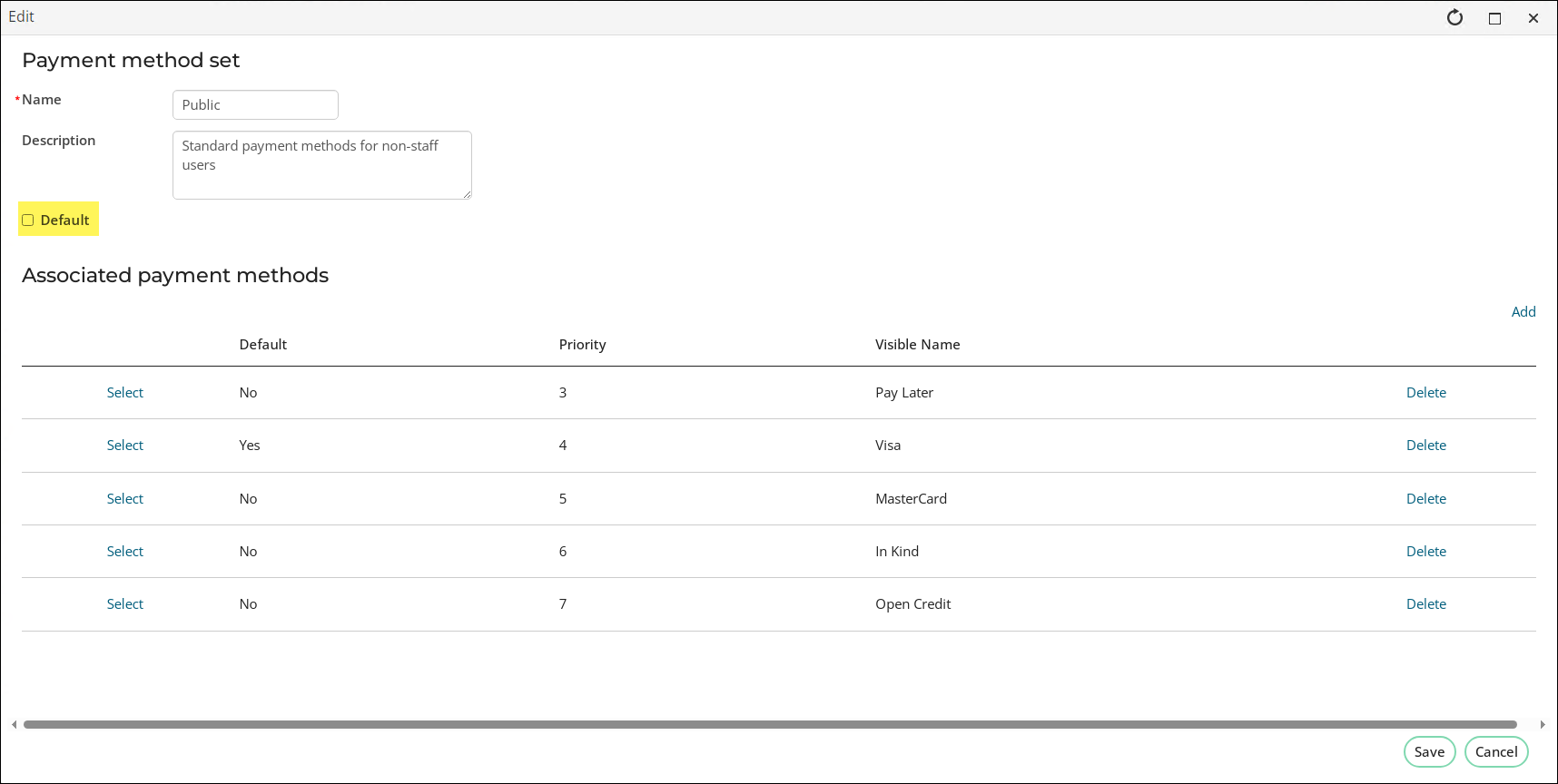
- (Payment method sets tab) Select the payment method set to edit or click Add new item to add a new payment method set. Enter the following information for the payment method set:
- Enter a Name for this payment method set.
- (optional) Enter a Description for this payment method set.
- (optional) You can specify the payment method set as the Default payment method set. If you specify a payment method set as Default, then any existing payment method set previously marked as Default is demoted.
- Click Add to add payment methods to your new payment method set, or click Save.
Updated 5 months ago