

Filtering reports using URL parameter values
NoteDue to a change in an external API, filtering a Chained or Dashboard Report using a URL parameter value is no longer supported. ExpressView and Advanced Reports are still supported.
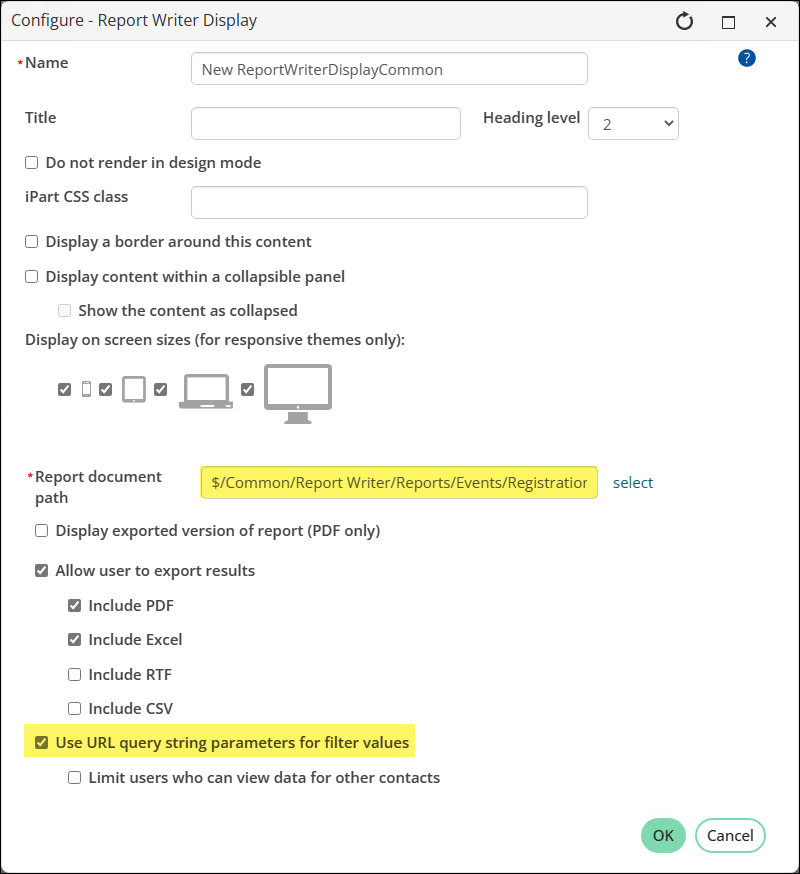
The Use URL query string parameters for filter values configuration option in the Report Writer Display content item allows you to pass a URL parameter from the report, so the results are filtered based on the query parameter.
NoteReport Writer does not support queries with dynamic filters. Instead, dynamically filter the report by enabling Use URL query string parameters for filter values on the Report Writer Display content item.
In the report filter, set the value equal to "@URLParam@", where "URLParam" is the name of the URL parameter which should be used. When the page containing this content item is loaded, the current value in the URL for "URLParam" will be used as the value for the report filter.
All parameters must use the following format for the filter value:
@[URL query string parameter]@
The [URL query string parameter] name is case sensitive.
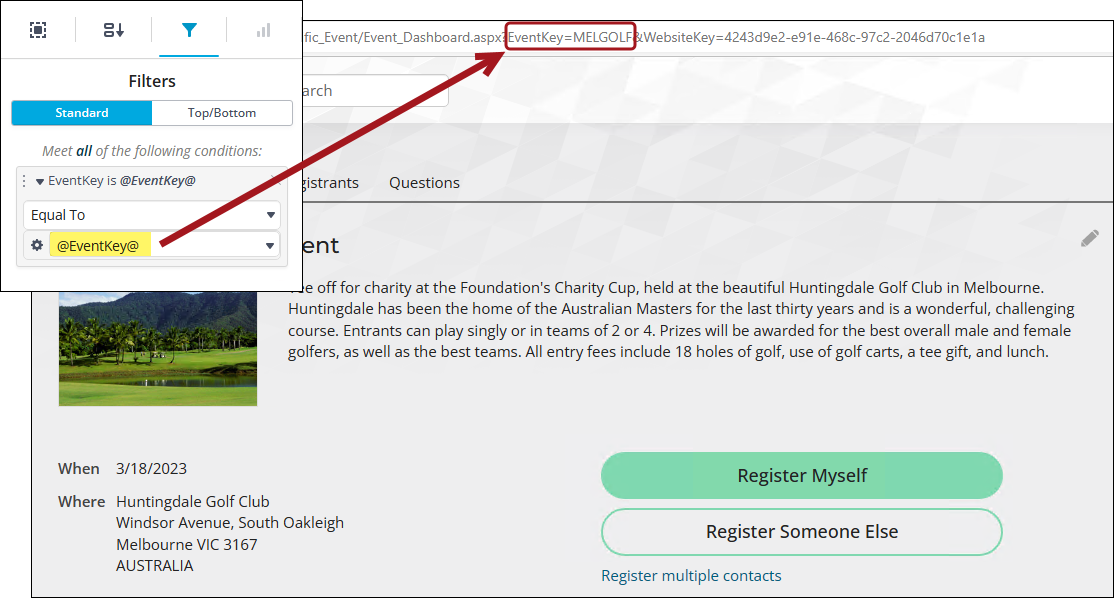
ExampleYou are creating a report that details the registration option and program item descriptions for each event. You need this report to display on the event-specific dashboard for every event. Instead of creating one report per event, you can pass in a URL parameter that will filter the results of the report automatically for each event.
Creating the report
Do the following to create the above example using Report Writer:
-
From the Staff site, go to Reports > Report Writer.
-
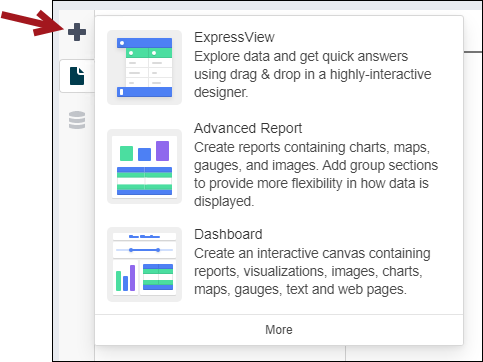
Select the folder the report will be added to, then click New > ExpressView.
-
From the Fields pane, expand Events > All event functions.
-
Add the EventName, Registration Option, and FunctionDescription properties.
-
Click Run to begin reviewing the report data. From the EventName column, you can see all events are displaying in the report.
-
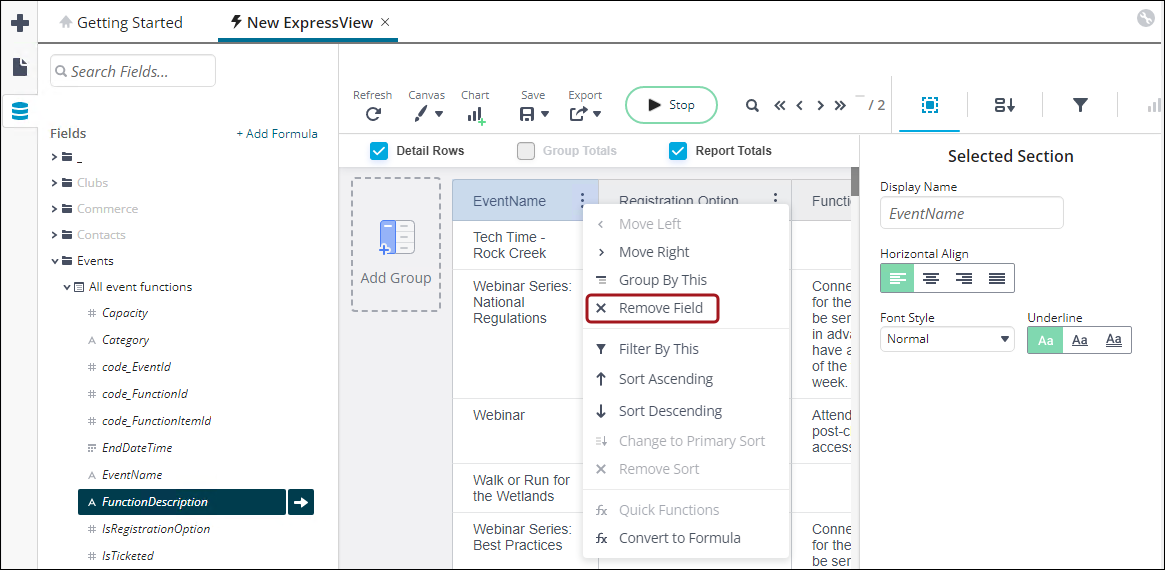
Remove the EventName property from the report.
-
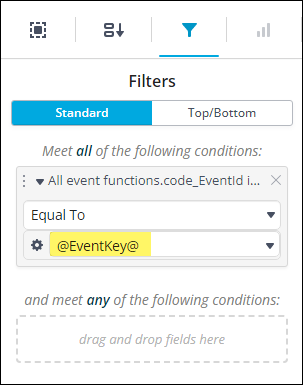
Add the code_EventId property to the Filters pane. Add @EventKey@ to the text box. This is the filter that the URL parameter will use in the Report Writer Display content item.
All parameters must use the following format for the filter value:
@[URL query string parameter]@
The [URL query string parameter] name is case sensitive.
-
Click Run again.
You will see that the report displays an error, because of the @EventKey@ filter. Any report containing a URL
parameter will display an error when viewed from Report Writer or the Document System.
It is suggested that reports containing a URL parameter are kept in a different folder
or are organized in a way so that all staff understand not to run these reports from Report Writer or the Document System.
- Save the report. Enter a Name, optional Description, and select the folder to save to. Click Save.
Adding the report to content and displaying the content
Do the following to display the report and utilize the filter:
-
Go to RiSE > Page Builder > Manage content.
-
From a Shared Content folder, create a new content record (New > Website content).
-
Add the Report Writer Display content item to the content record (Utility folder).
-
From the Report document path field, select the report you just created.
-
Enable Use URL query string parameters for filter values.
-
Click OK, then click Save & Publish.
-
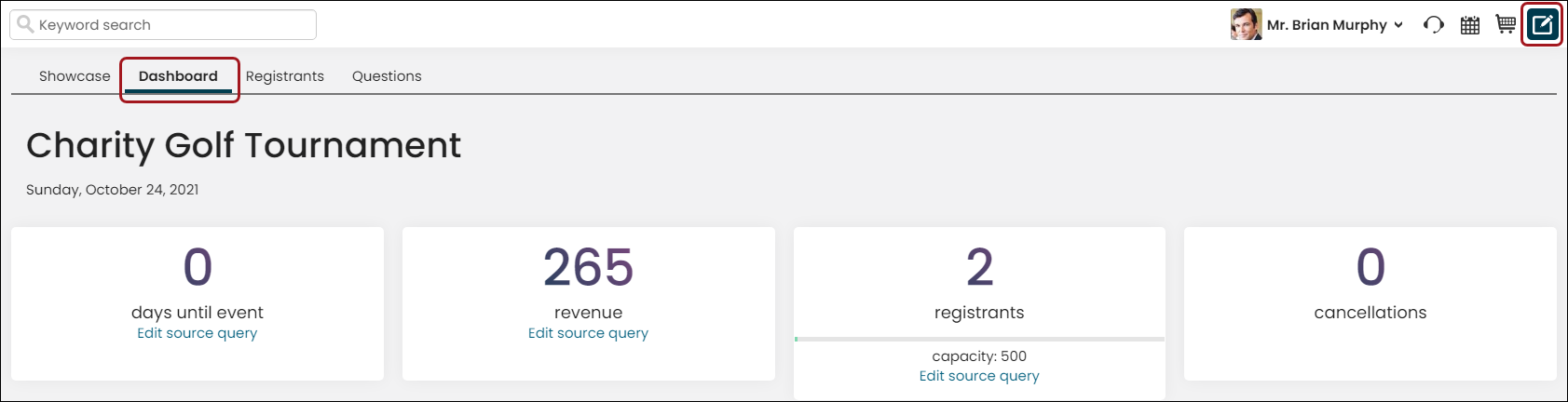
Navigate to the event-specific dashboard for any event.
-
Enable Easy Edit.
-
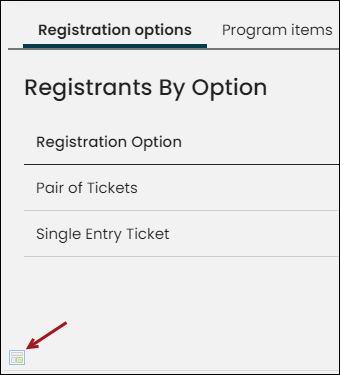
At the bottom of the dashboard, open the Content Collection Organizer for edit.
-
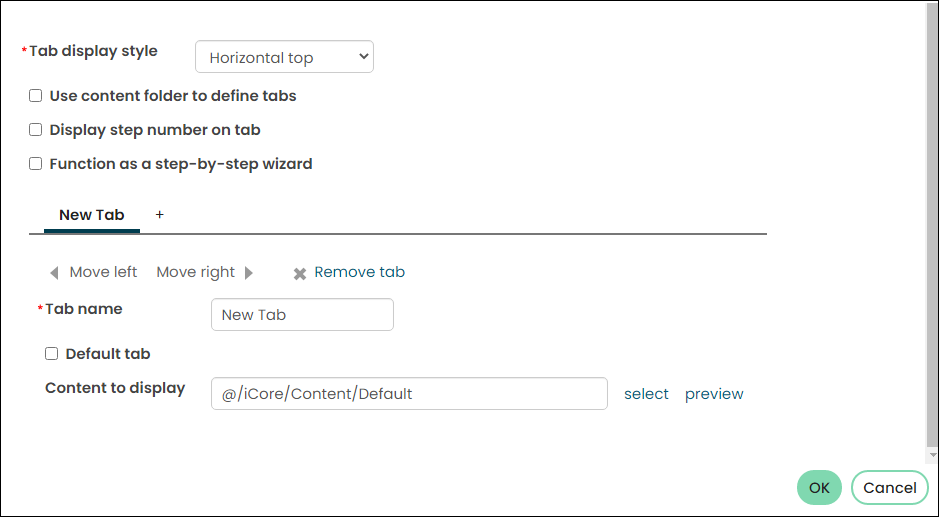
Add a new tab and enter the Tab name.
-
From the Content to display field, select the content record containing the Report Writer Display content item, then click Save & Publish.
-
Click the new tab you just added. You will see the program option descriptions displayed for the specific event, instead of all descriptions for all events.
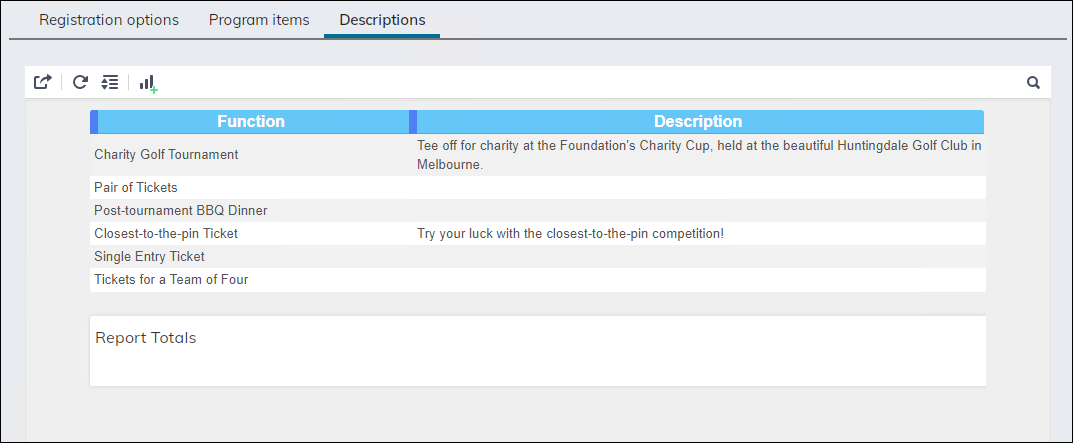
-
If you navigate to a different event-specific dashboard and click the same tab, you will see that event’s program option descriptions.
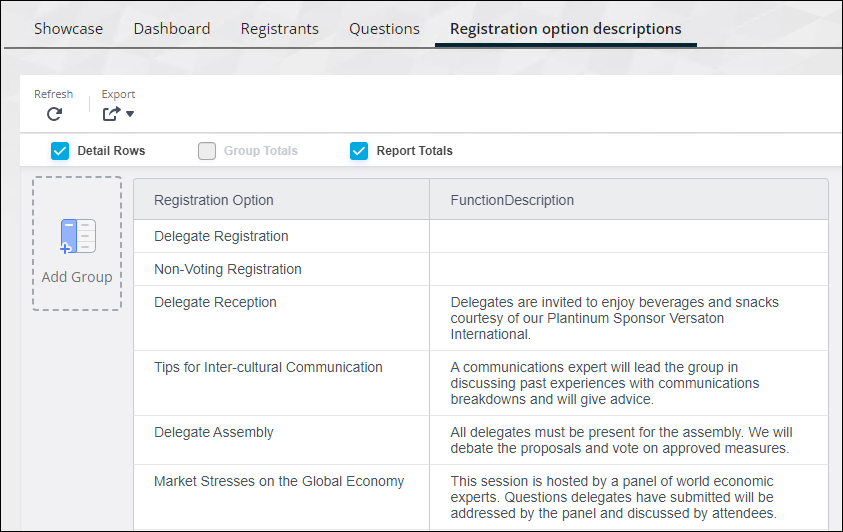
Updated 5 months ago