

Configuring the AutoPay settings
NoteIn order to use AutoPay you must have a license key. For more information, contact your AiSP or ASI Technical Support.
When your site is configured with AutoPay, donors are invited to make recurring donations of monthly, quarterly, or annually, and members have the option to have their future membership renewals automatically paid. You can also configure the Automatic Payment Enrollments content item to allow members and donors to cancel their own enrollments from their public accounts.
Before you begin
Before you configure AutoPay, the following must be true:
- You have an AutoPay license key. Contact ASI for more information.
- You have at least one payment gateway configured.
NoteiMIS Pay is the required gateway for those in the United States, Canada, and Asia Pacific.
Additionally, it is recommended to review the AutoPay: Getting Started Guide if you are setting up AutoPay for the first time.
Configuring AutoPay
Whether you need to setup AutoPay for recurring donations or membership renewals, the configuration process is the same.
Do the following to configure the AutoPay settings:
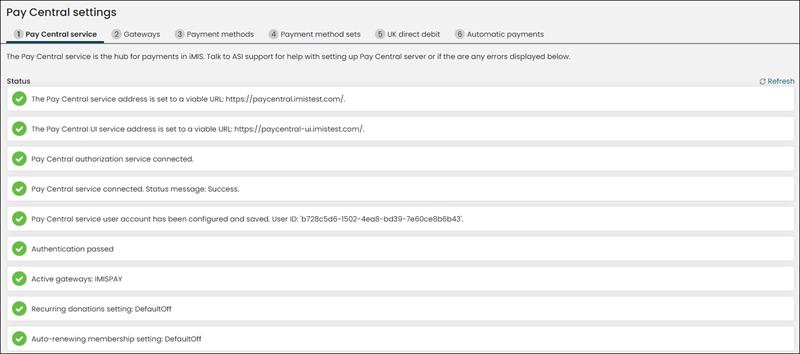
- Go to Settings > Finance > Pay Central. Confirm that the first several status messages appear green. If the following status messages are not green, contact ASI Technical Support.
-
Click the Automatic payments tab. Enable recurring transactions in iMIS:
-
Enable Allow users to create recurring donations:
-
Donations are recurring by default - Select this option to allow all donations to be recurring. Donors can disable this function at the time of transaction.
-
Allow donors to change the amount of their donation - Select this option to allow donors to modify the amount of an active recurring donation.
NoteThis option is required for customers to add new payment methods to their existing AutoPay enrollments.
NoteThis does not apply to UK direct debits. UK direct debits have different requirements for adjustments. See Direct Debits for more information.
- Allow stored payment methods to be used for all purchases – Select this option to allow customers to use saved payment options for all future purchases. You must have an iMIS Pay gateway configured for this option to be available.
- Allow staff users on behalf of a customer to use their stored payment methods – Enable to allow all staff to use customers’ saved payment methods when working on their behalf.
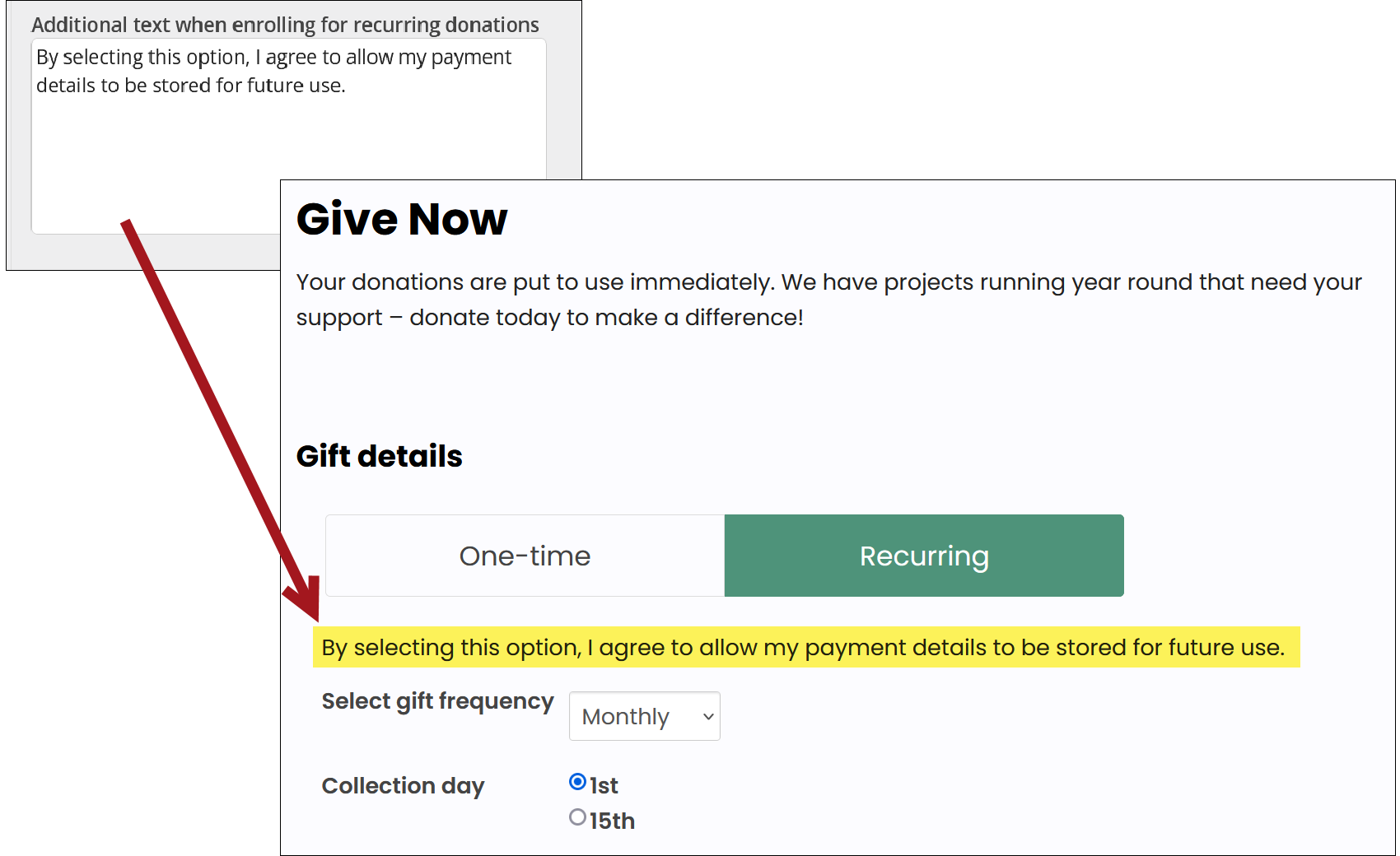
- Additional text when enrolling for recurring donations – Add a custom message to display when a customer pays for recurring donations or keep the default message.
 Note
NoteIf Allow stored payment methods to be used for all purchases is enabled, this message should clearly inform customers that their AutoPay payment method will be stored and available to use for future purchases.
-
-
Allow users to create auto-renewing memberships - Select this setting to enable automatic billing for memberships.
- Memberships are auto-renewing by default - Select this option to make all sitewide memberships auto-renew by default. Members can disable this function at the time of transaction.
-
Click Save.
-
Make sure the correct payment terms are set.
Click for details
Payment terms specify the period of time allowed for the customer to pay for the goods and services that have been ordered. With AutoPay, you will send invoices to the Pay Central Service for payment processing on the invoice due date.
Common payment terms include:
- Annually – The payment is due within one year (twelve months).
- PrePaid - The payment is expected at the moment of the transaction. When a payment term is set to PrePaid, the invoice due date is the date of the invoice.
- Quarterly - The payment is due within one quarter (three months).
- Net 30 - The customer is given 30 days from the date of the invoice to submit the payment. When a payment term is set to Net 30, the due date will be thirty days in the future.
- Monthly - The payment is due within one month.
It is recommended that you set the default payment term for your organization:
- Fundraising-based organizations - Set the default payment term to Prepaid.
- Membership-based organizations - Set the default payment term to Net 30.
With AutoPay, invoices are sent to the Pay Central Service for payment processing on the invoice due date. Set your payment terms to Prepaid so that recurring donation invoices are sent to the Pay Central Service for payment processing on the date the donation was made.
- (optional) Enable the process automation task that automatically sends an email to those who enrolled with AutoPay membership or donation enrollments. See Sending confirmation emails for recurring payment enrollments for details.
Next steps for configuring AutoPay
Once you have enabled the AutoPay settings, you must take a few additional steps to allow members and donors to finish setting up AutoPay:
- Configure automatic membership renewals.
- Configure automatic recurring donations.
- Enable the Retrieve processed payments from Pay Central task.
- (optional) Allow donors to cancel their own enrollments without staff assistance. See Allowing members and donors to cancel their own enrollments.
Updated 5 months ago